
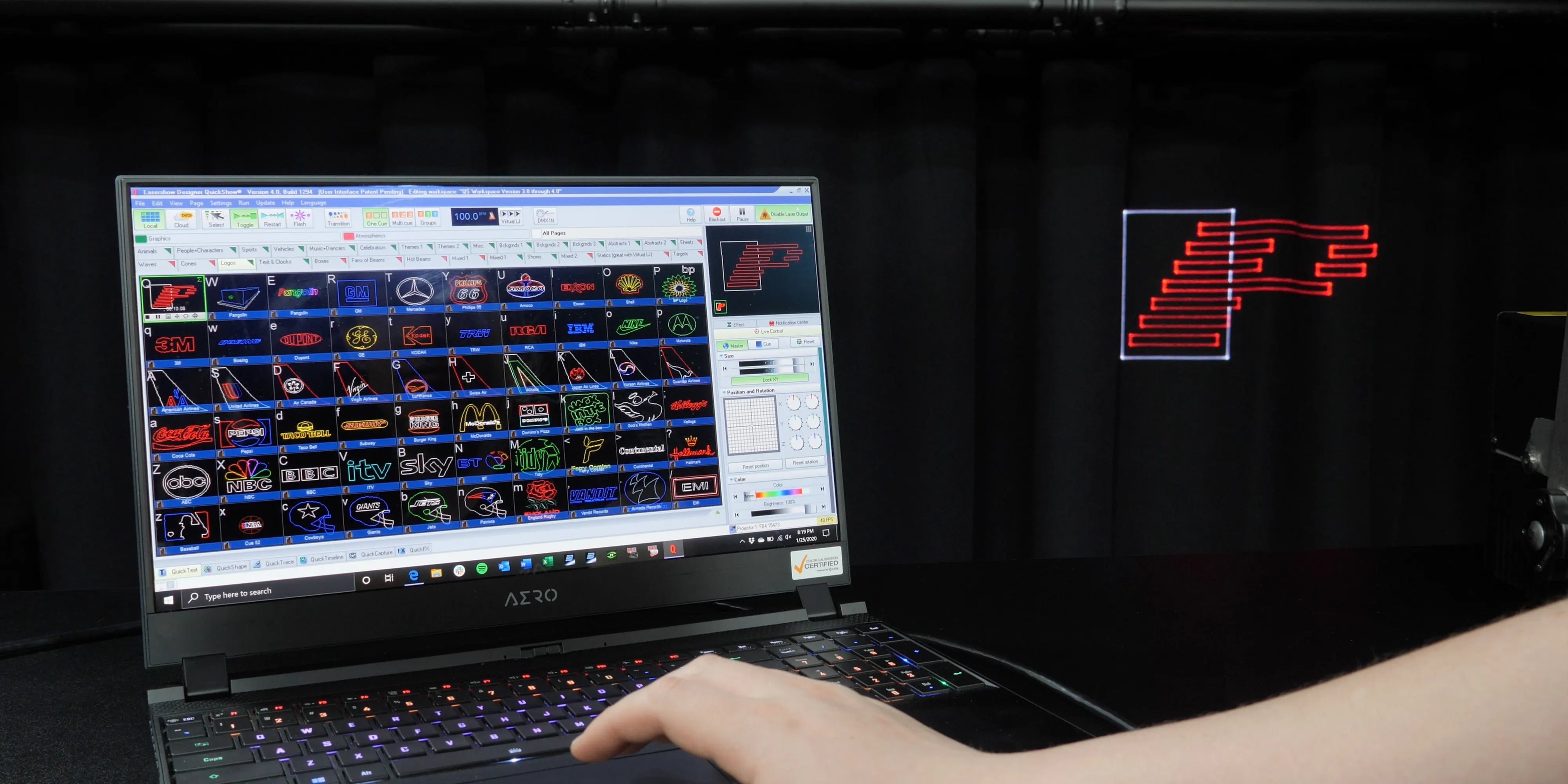

What is PC Mode?
PC mode, also called “streaming mode” is where you are controlling your laser show from a PC, using software such as Pangolin QuickShow or BEYOND. This can also be done in conjunction with a MIDI device (such as the Beyond Performer Console, APC MINI, or APC40). In simple terms, PC Mode is when your laser projector is "live-linked" to your computer. In this mode, the laser does nothing until your software tells it exactly where to point, what color to be, and how fast to move.
Console Control Quick Hints Videos
Custom Content Creation
Beyond Frame Editor
A quick overview of how to design custom frames for your laser shows. For a more in-depth look at this topic, check out our Premium Course: How to Draw Laser Graphic Content.
Premium CourseTimeline Control | Quickshow
Intro to Quickshow Timeline
A quick overview on how to make custom timeline shows in Quickshow.
Timeline Control | Beyond
Intro to Beyond Timeline
A quick overview on how to make custom timeline shows in Beyond. To get a more in-depth look at how to make shows like a pro, check out our Premium Course: Timeline Beam Shows Mastered.
Premium CourseLive Midi Control | Quickshow
How to Use MIDI and DMX
Use the Beyond Performer Console, a MIDI controller, or your PC keyboard to play the laser live like an instrument.
Live Midi Control | Beyond
How to Use MIDI
Use the Beyond Performer Console, a MIDI controller, or your PC keyboard to play the laser live like an instrument. To get a more in-depth lesson on this topic, check out our Premium Course: How to Program Midi Control Surfaces.
Premium CourseBeyond Frame Editor
A quick overview of how to design custom frames for your laser shows. For a more in-depth look at this topic, check out our Premium Course: How to Draw Laser Graphic Content.
Premium CourseIntro to Quickshow Timeline
A quick overview on how to make custom timeline shows in Quickshow.
Intro to Beyond Timeline
A quick overview on how to make custom timeline shows in Beyond. To get a more in-depth look at how to make shows like a pro, check out our Premium Course: Timeline Beam Shows Mastered.
Premium CourseHow to Use MIDI and DMX
Use the Beyond Performer Console, a MIDI controller, or your PC keyboard to play the laser live like an instrument.
How to Use MIDI
Use the Beyond Performer Console, a MIDI controller, or your PC keyboard to play the laser live like an instrument. To get a more in-depth lesson on this topic, check out our Premium Course: How to Program Midi Control Surfaces.
Premium CourseCommon Questions
The video at the top of this page will show you how to control a laser with FB4 from a PC using software. In general, you simply run an ethernet cable from the PC directly to the back of the projector with FB4 inside, and you are setup and done.
If you're new to laser projectors and are looking into purchasing an ILDA based laser system, we suggesting following this link to get a better understanding of ILDA lasers, and the ways you can control them.
For those with an existing ILDA laser, there are two workflows to control it from a PC.
If you are using an ILDA laser, with an FB3QS, you simply connect the FB3QS to your PC via a USB cable, and then connect an ILDA cable from the FB3QS, to the back of your laser projector. Click here to find out more about FB3QS.
Using an ILDA laser, with an FB4 External system, you will connect the FB4 External system to your PC via an ethernet cable. And then, connect an ILDA cable from the FB3QS to the back of your laser projector.
Pangolin products all support the MIDI protocol. As such, you can easily control lasers using MIDI devices and Pangolin software such as QuickShow or BEYOND.
If you are using QuickShow software, we recommend the APC MINI MK2 console, as the software has a customized map, already made for the device.
If you are using BEYOND software, we recommend the APC40 MK2, as the as the software has a customized map, already made for the device.
Yes there is. You can access all of our connection diagrams on our Pangolin Wiki page.